Introduction to Nano Banana Pro
Nano Banana Pro has emerged as one of the most powerful AI image generators on the market today. What sets it apart from competitors like Midjourney and DALL-E is its exceptional ability to work with structured JSON prompts, giving you unprecedented control over every aspect of your generated images.
In this comprehensive guide, we'll walk you through everything you need to know about using JSON prompts with Nano Banana Pro, from basic concepts to advanced techniques that will help you create stunning, professional-quality images consistently.
Why JSON Prompts Are Superior to Text Prompts
Traditional text prompts have significant limitations. When you write a long paragraph describing your desired image, AI systems often struggle to parse which elements are most important, leading to inconsistent results.
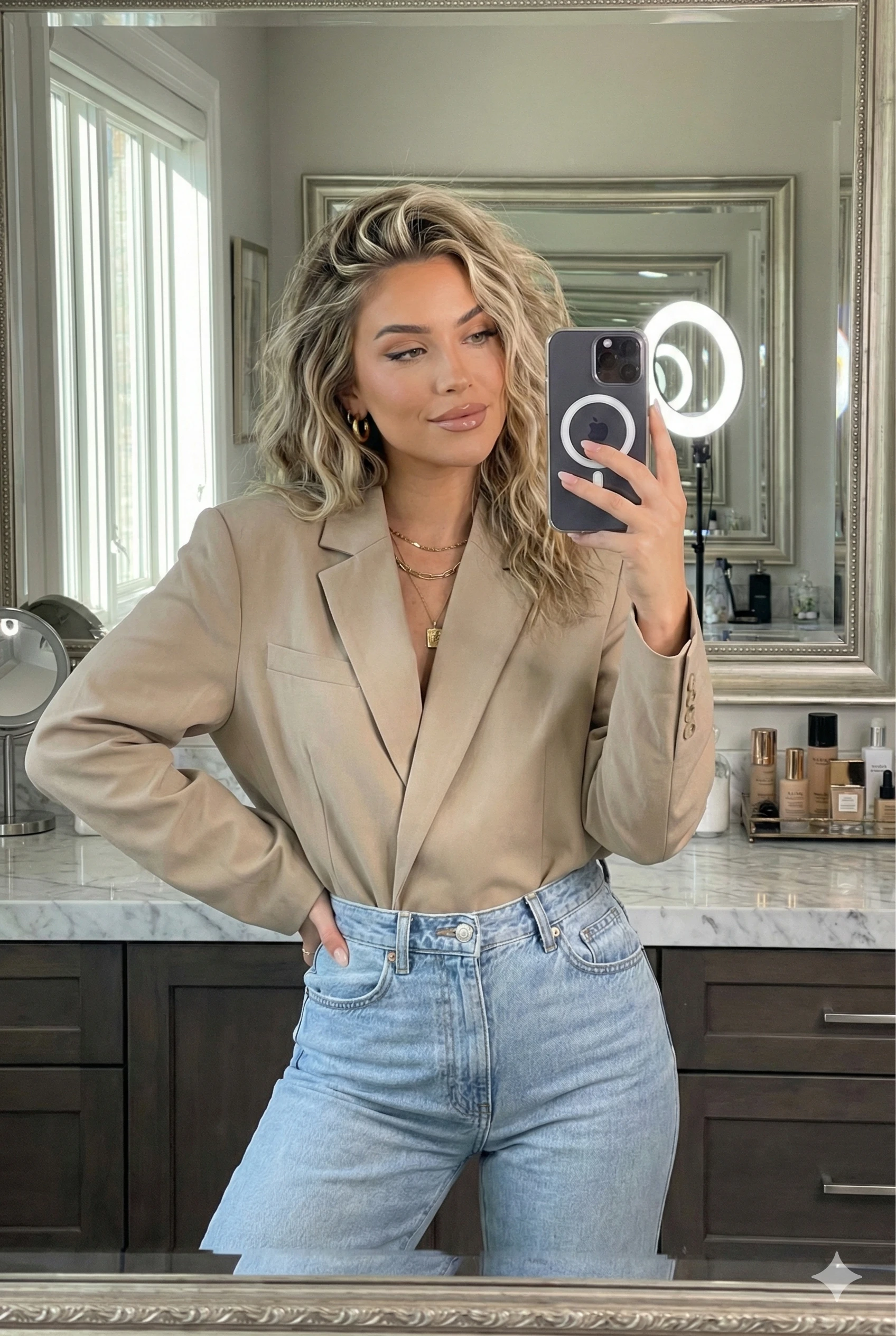
JSON prompts solve this problem by organizing your instructions into clear, hierarchical sections:
1. Better Organization
With JSON prompts, you can separate your instructions into logical categories like subject, lighting, composition, and styling. This makes it easier for the AI to understand exactly what you want.
2. Precise Control
Each parameter in your JSON prompt can be fine-tuned independently. Want to change just the lighting? Simply modify that one section without affecting the rest of your prompt.
3. Reference Image Support
Nano Banana Pro excels at using reference images for face consistency, clothing matching, and background preservation. JSON prompts make it easy to define these reference policies clearly.
4. Negative Prompts
JSON structure allows you to clearly separate positive and negative prompts, ensuring the AI knows exactly what to include and what to avoid.
5. Reproducibility
Save your JSON prompts and reuse them with minor modifications. This is invaluable for batch processing or creating consistent image series.
Step-by-Step Guide to Using Nano Banana Pro
Step 1: Choose Your Category
Start by selecting a category that matches your project:
Each category has been optimized with specific presets that work best for that type of image generation.
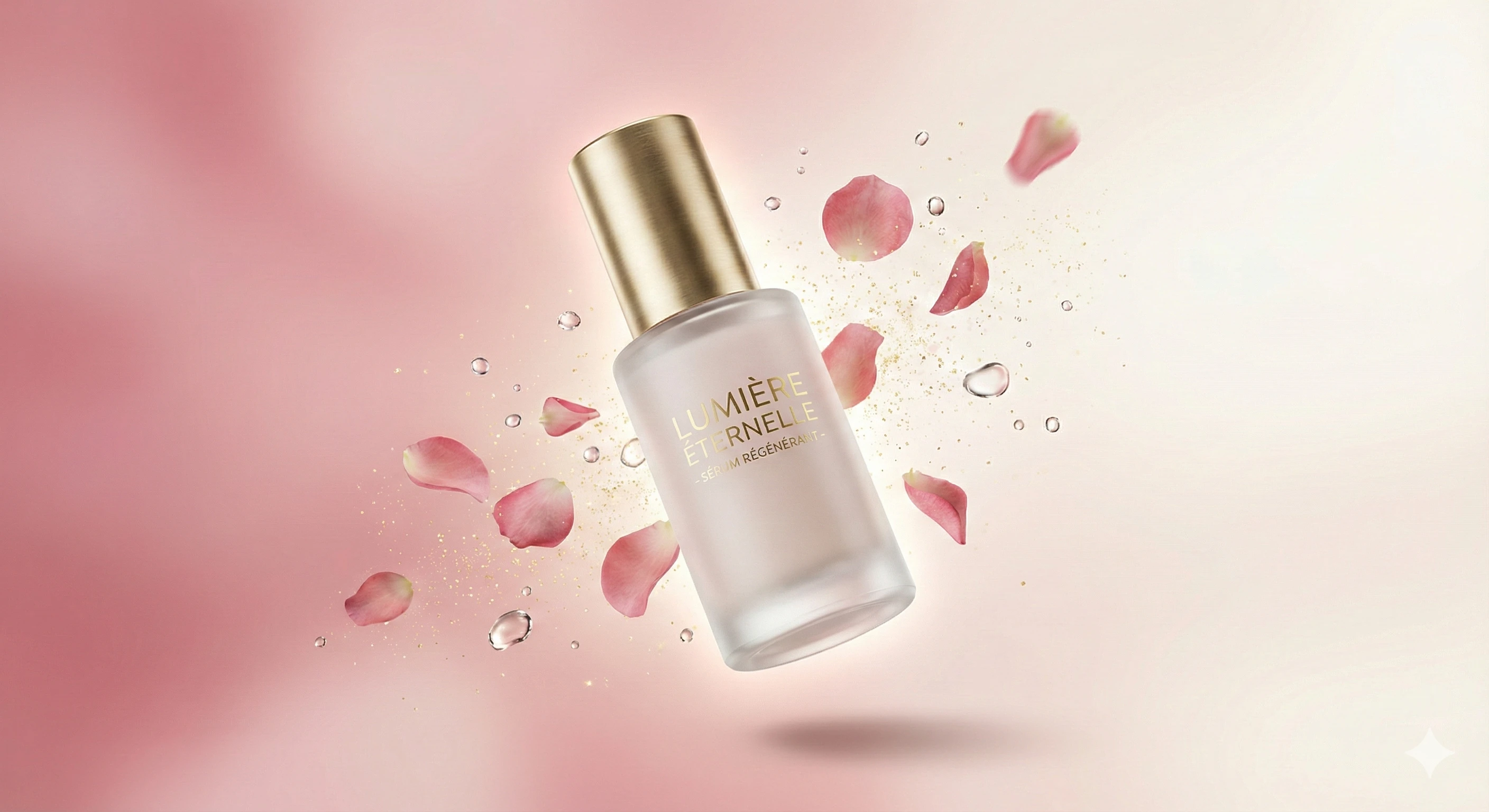
Step 2: Craft Your Description
Write a detailed description of your desired image. Be specific about:
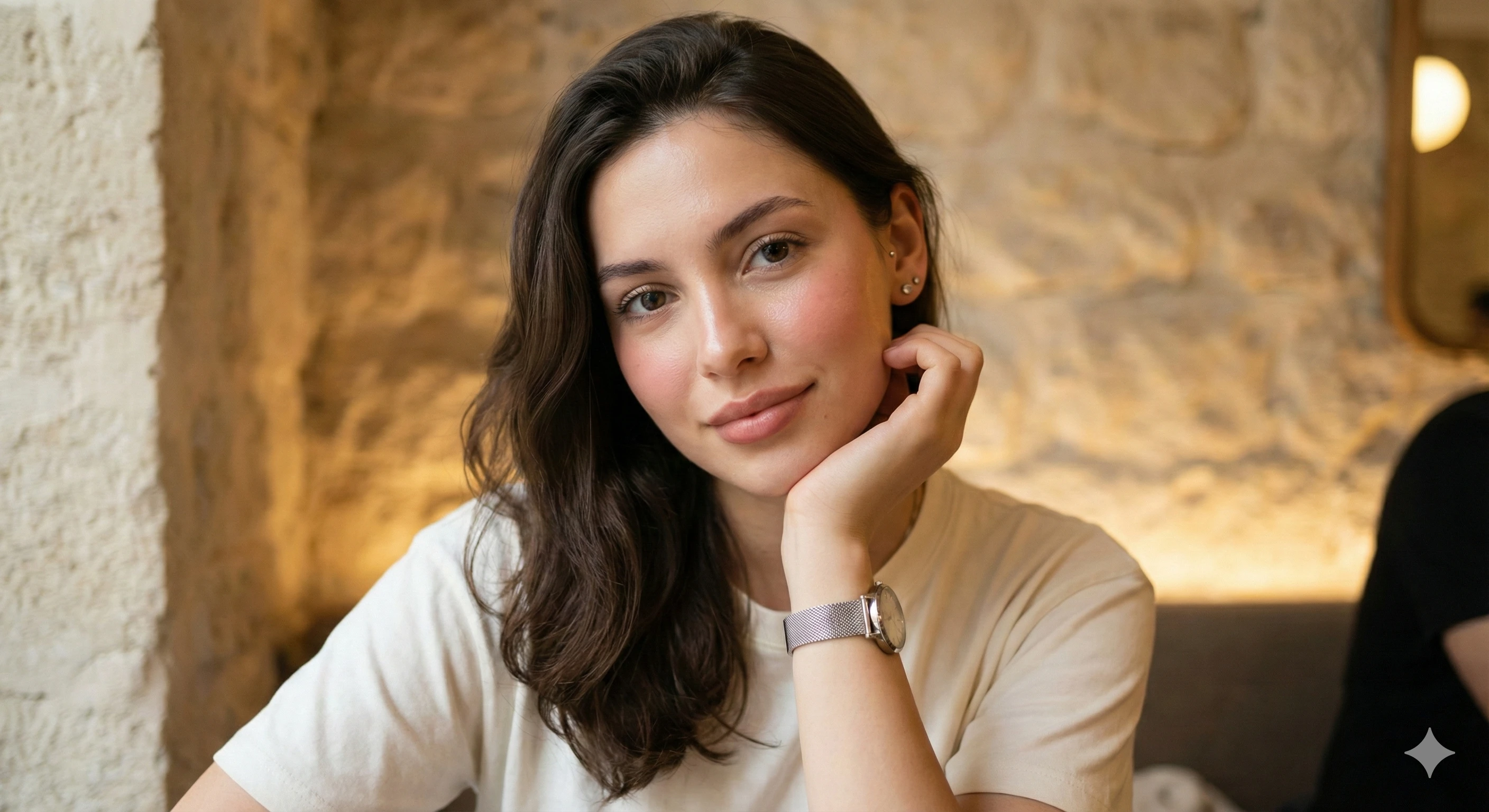
For example: "A confident young professional woman standing in a modern office space, wearing a navy blue blazer with a subtle smile, natural daylight streaming through large windows behind her."
Step 3: Configure Your Settings
Adjust the technical parameters:
Aspect Ratio Options:
Lighting Presets:
Camera Simulation:
Step 4: Enable Reference Image Policies
This is where Nano Banana Pro really shines. Enable these options for consistent results:
Face/Identity Reference:
Upload a reference face and Nano Banana Pro will maintain that person's likeness across multiple generations. Perfect for creating content for influencer campaigns or personal branding.
Clothing Reference:
Match specific outfits from your reference images. Essential for fashion e-commerce and outfit consistency.
Background Reference:
Maintain environmental consistency across a series of images. Great for product photography with consistent settings.
Step 5: Add Negative Prompts
Preventing common AI artifacts is crucial. Our generator automatically includes smart negative prompts:
blur, blurry, low quality, bad anatomy, deformed hands, extra fingers,
missing fingers, distorted face, ugly, watermark, text, logo,
oversaturated, grainy, noise, cartoon, anime, CGI, plastic skin
You can add custom negative prompts based on your specific needs.
Step 6: Generate and Iterate
Click generate, copy your JSON prompt, and paste it into Nano Banana Pro. Review the results and iterate by adjusting specific parameters.
Example JSON Prompts
Here's a complete example of a professional portrait prompt:
{
  "image_prompt": {
    "reference": {
      "face_identity": "use uploaded reference image",
      "identity_lock": true,
      "face_accuracy": "100% identical"
    },
    "subject": {
      "type": "young professional woman",
      "age_range": "25-35",
      "expression": "confident, approachable smile",
      "gaze": "direct eye contact with camera",
      "pose": "standing, three-quarter view"
    },
    "appearance": {
      "skin": "natural, healthy glow",
      "makeup": "subtle, professional",
      "hair": "styled, neat"
    },
    "outfit": {
      "style": "business casual",
      "top": "navy blue blazer over white blouse",
      "accessories": "small gold earrings"
    },
    "setting": {
      "location": "modern office with floor-to-ceiling windows",
      "background": "blurred cityscape visible through windows"
    },
    "lighting": {
      "type": "natural daylight",
      "direction": "soft front lighting with subtle rim light",
      "quality": "flattering, even illumination"
    },
    "composition": {
      "shot_type": "medium close-up",
      "camera_angle": "eye level",
      "depth_of_field": "shallow, f/1.8"
    },
    "style": {
      "overall": "professional corporate photography",
      "color_grade": "natural, slightly warm tones"
    },
    "negative_prompts": [
      "blur", "bad anatomy", "deformed hands",
      "oversaturated", "cartoon", "CGI look"
    ]
  }
}
Pro Tips for Better Results
Tip 1: Start Simple, Then Add Detail
Begin with a basic prompt and gradually add complexity. This helps you understand which parameters have the biggest impact.
Tip 2: Use Specific Descriptions
Instead of "nice lighting," say "warm golden hour sunlight streaming from the left at 45 degrees." Specificity leads to better results.
Tip 3: Always Include Negative Prompts
Never skip negative prompts. They're essential for avoiding common AI artifacts like deformed hands and blurry backgrounds.
Tip 4: Match Read Time to Content
For portraits, use 85mm simulation. For full-body shots, use 50mm or 35mm. For products, consider macro settings.
Tip 5: Iterate Systematically
Change one parameter at a time when iterating. This helps you understand what's causing improvements or issues.
Tip 6: Save Your Best Prompts
Build a library of successful prompts. Categorize them by use case for quick reference.
Common Issues and Solutions
| Issue | Solution |
|---|---|
| Blurry images | Add "blur, blurry" to negative prompts; increase quality settings |
| Deformed hands | Add "deformed hands, extra fingers" to negatives; consider poses with hidden hands |
| Wrong face | Enable identity_lock; increase face_accuracy setting |
| Oversaturated colors | Add "oversaturated" to negatives; specify natural color grading |
| Inconsistent style | Use the same JSON structure; lock more parameters |
| Weird lighting | Be more specific about light direction and quality |
Conclusion
Nano Banana Pro paired with structured JSON prompts from our generator gives you professional-level control over AI image generation. The key to success is understanding how each parameter affects your output and building a systematic approach to prompt creation.
Start with our pre-built templates, experiment with different settings, and save your successful prompts for future use. With practice, you'll be creating stunning, consistent images that rival professional photography.